⚔️
↩️
POSITION VOIDED
🌀
RIFT ACTIVATED
The Tome
Tome of Legends
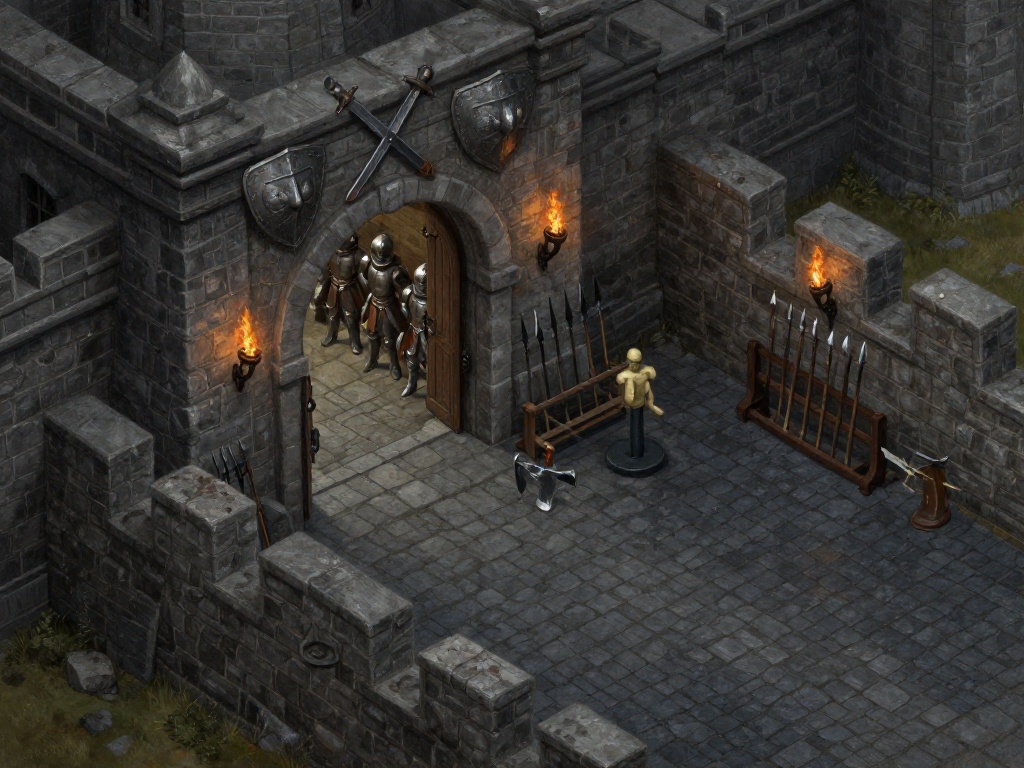
The Barracks
The Barracks
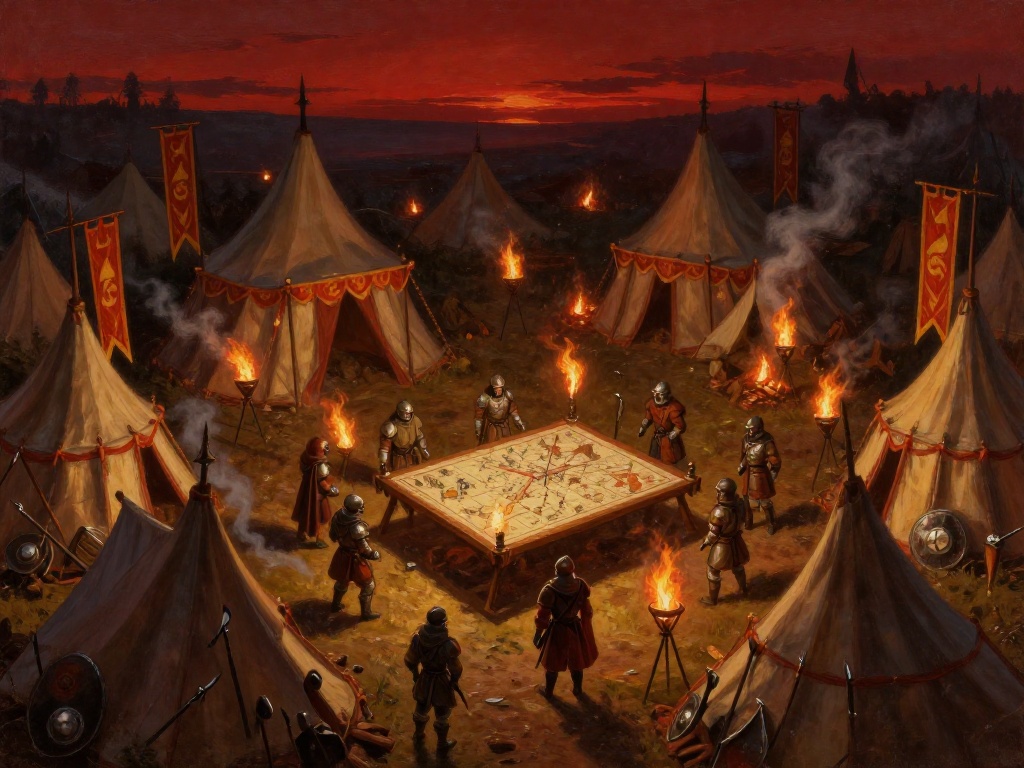
War Camp
War Camp
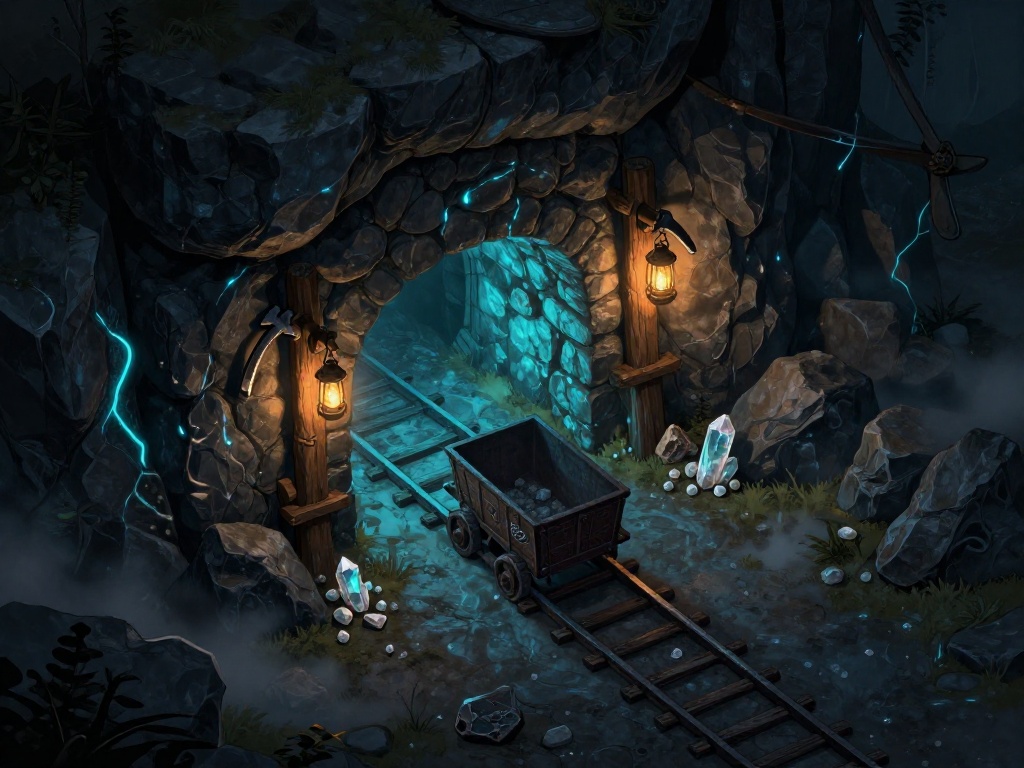
The Mine
Mine
Provisions
Provisions
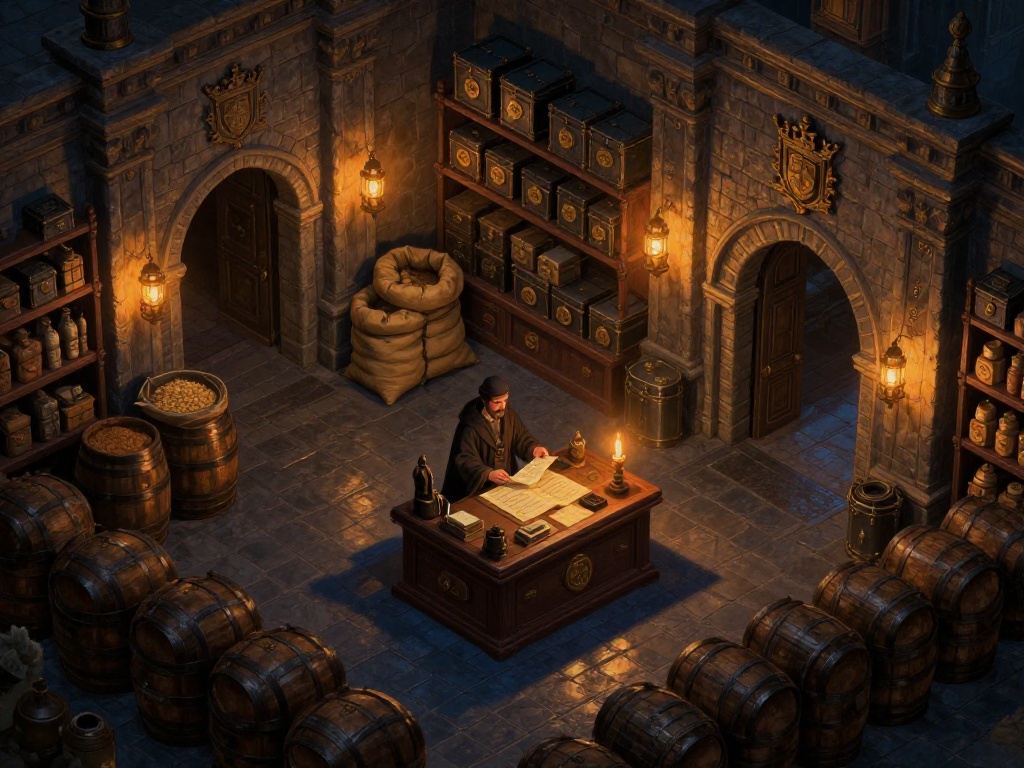
The Treasury
The Treasury
The Market
The Market
World Portal
WORLD 1
The Ashlands
World
WORLD 1
The Ashlands
Tribe of the Scavengers
RFC 0 RFC
+0R → Next World
Stone: 0 / 0 0%
Mine resources to advance
🔑 RFC Gate 0 / 0 RFC
✕ CLAN MIGHT
🛡 0
Skirmisher · The road begins
✕ DISCIPLINE RATING
No trades yet
➖ BTC NEUTRAL
The Sanctum
The Sanctum
✦ TRADABLE CAPITAL
$0.00
Available to trade
+5.3R 🔥 0
↩ VOID POSITION
ASSET
DIRECTION
RISK AT STAKE
WARBAND
Full risk capital will be refunded to the warband.
No game stats affected. No chronicle entry.
TERMINATE POSITION
Symbol
Direction
Lots
Open Price
Stop Loss
Take Profit
Unrealised P&L
This action will immediately market close the full position
🔥 Cannot Disband Warband
This warband still has active campaigns.
Close or void all positions before disbanding.
💀 Disband Warband
Are you sure you want to disband this warband?
This cannot be undone.
🌀 Portal Activation
— Warband —
📜 Settle the Ledger
📸 Screenshot 1
📸 Screenshot 2
END DATE
END TIME
blank = now
📖 The Tome of Legends
Tome
War Chronicle
Every portal opened, every R earned. Track your kingdom stats, recent trade history, and campaign progress. Your discipline and streak are forged here.
Kingdom Stats
0.0
Total R
Discipline
0
Streak
0
Rule Breaks
0
Wins
0
BE
0
Losses
0
Total
0
Green
Portal History
No portals logged yet
⚔️ The Barracks
Realm Management
Champion Roster
⚔ Active Champions
BTC NEUTRAL
🏕️ War Camp
📜 Recent Battles
No trades logged yet
📦 Provisions
Cycle Summary
$0.00
Required
$0.00
Funded
$0.00
Outstanding
Loading provisions...
🏛️ The Treasury
Treasury
The Treasury
Your kingdom's savings and investment reserves. Deposit into each account manually, hit balance milestones to unlock chest rewards, and watch your real-world wealth grow in lockstep with your kingdom.
Savings Accounts
Total: $0.00
Loading treasury...
Add Savings Account
🏪 The Market
Market
The Market
Buy items and stock your inventory. Use them when you choose — nothing activates until you decide.
RFC: 0
Resources: 0
Loading...
🔭 Forge Link — SCAN
Deploy Scanner
🔮
NEXUS REALM
Crypto perp futures · WaveTrend alerts
⚔️
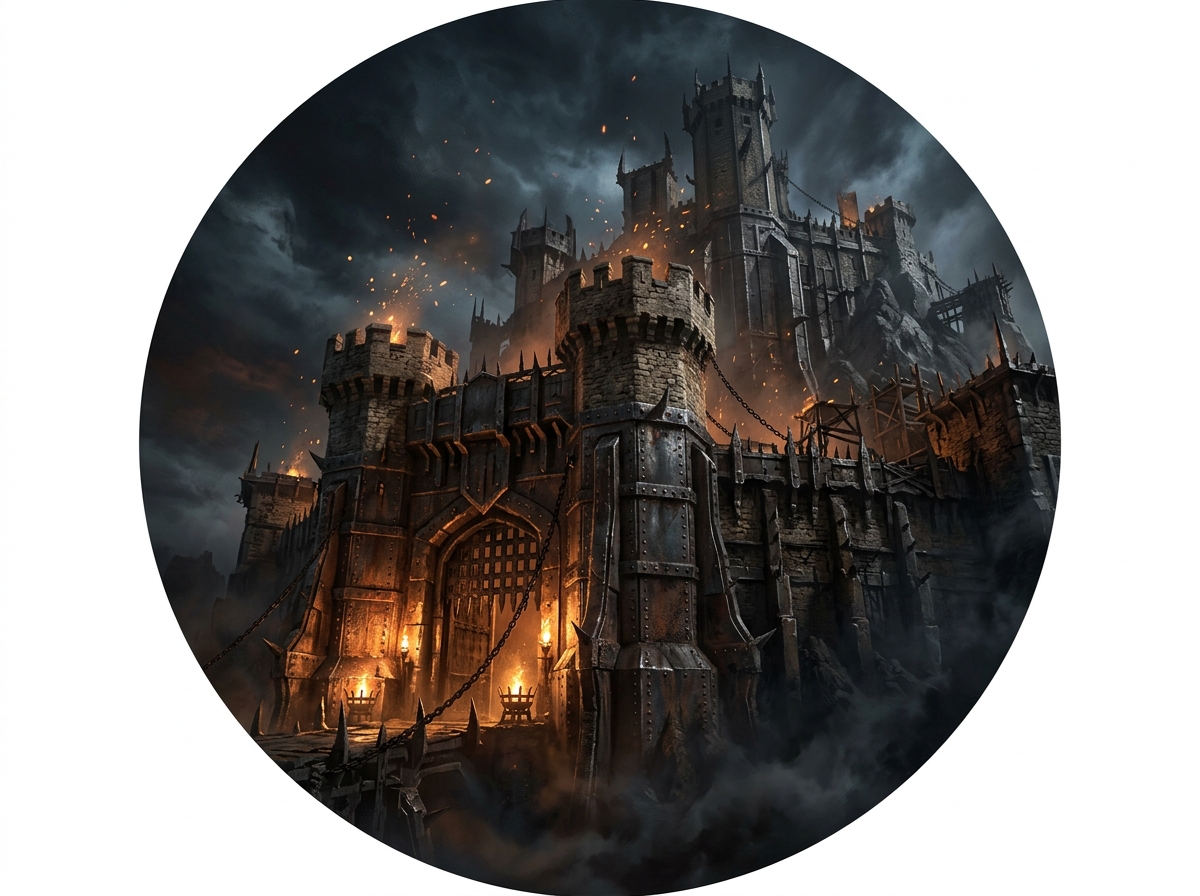
IRON CITADEL
Forex & futures · MetaTrader 5 bridge
🌊
THE VEIL
Hyperliquid perp futures · WaveTrend alerts

📜 The Sanctum
"The realm does not reward those who are merely clever.
It rewards those who are consistent."

Welcome to the Sanctum. This is your complete guide to RealmForgeWorld — written so anyone can understand it, even if you're brand new to trading. Read the scrolls from top to bottom once. After that, you'll know exactly how everything works and what to do next.

I The Philosophy

Most traders already know a strategy that works. The real reason they fail is not their strategy — it is their behaviour. Fear makes them close trades too early. Greed makes them hold too long. Impatience makes them enter before the right signal appears. These habits destroy accounts, not bad strategies.

RealmForgeWorld is built on one simple idea: if you can be disciplined in this game, you will be disciplined in real trading. The game rewards the same behaviours the market rewards.

You can cheat this game. You can skip rules, ignore provisions, or inflate your numbers. The game will reward you short-term. But your real trading account will always tell the truth. Over time, both will match — because the game mirrors real life on purpose.

This is not about getting rich fast. It is about becoming consistent. One good trading habit — repeated every single day for 12 months — is worth more than any lucky streak. The game is designed to build that habit. Play it honestly and your real account will follow.

II The Language of the Realm

RealmForgeWorld uses game terms for real trading concepts. Every term has a direct real-world meaning. This table is your reference — come back to it whenever you see a word you don't recognise.

Realm Term Real World Meaning
⚔ WarbandA trading account — MT5 or Hyperliquid
🏕 War CampYour open and active trade positions right now
🚶 MarchAn automated trade — you set it up in advance and it fires on its own when the right signal appears
⚡ Strike LinkExtra accounts attached to a march — when one signal fires, all linked accounts copy the same trade within seconds
👁 Arcane Market LensA live view of all your open MT5 trades across every account — shows profit/loss, lets you adjust stops and close positions
📐 R (Risk Unit)One unit of risk — how you measure trading results without being distorted by account size
⚖ Discipline %Your overall win rate across all logged trades
🔥 Green StreakHow many winning trades you've had in a row
⛏ MineA daily check-in that earns resources — rewards you for showing up consistently
📦 ProvisionsYour real monthly expenses: rent, subscriptions, food, etc.
🏛 TreasuryYour savings goals — an emergency fund, a target, a milestone
💰 RFCIn-game currency earned through disciplined trading
🧙 ChampionA collectible character that gives your kingdom passive bonuses
🛡 Clan MightYour overall kingdom strength — reflects how consistent you've been across everything
🌍 WorldA progression level — the realm has 10 worlds, each harder and more rewarding
🌀 PortalThe trade execution hub — where you open positions and log your trades
🔭 ScannerA real-time tool that watches the markets and alerts you when your signal appears
⚡ Guardian AlertA warning that fires when you break a trading rule you set for yourself
🗺 BarracksAccount management — connect brokers, create warbands, set your rules
📖 Tome of LegendsYour complete trading journal — history, stats, champions, achievements
III Where to Begin

Don't try to use every feature on day one. Follow these five steps in order — they build on each other. By the end, you'll have a fully working setup and your first trade logged. If you run into any connection issues, Scroll IV (MT5) and Scroll V (Hyperliquid) have the full troubleshooting details.

01
Set Up Your Warband & Connect Your Broker Open The Barracks from the main screen. Create a new warband and give it a name. Enter your account balance — the exact amount in your trading account right now. Set your floor (the lowest balance you'll allow before you stop trading) and your max risk per trade. Be honest with these numbers — they are your foundation.

Next, connect your warband to your broker. MT5: enter your account number, trading password, and server name — the app connects directly to MetaTrader 5 on your PC and syncs your live balance automatically. Hyperliquid: set the source to Hyperliquid and follow Scroll V for the full credential setup — it takes about 5 minutes and must be done on the Hyperliquid website first. Once connected, click Save Changes.
02
Enter Your Provisions Go to the Provisions section. Enter every real monthly expense — rent, phone, internet, food, subscriptions. Every single one. The game needs to know what your trading income must cover. Skipping this removes the most important accountability feature in the app.
03
Set One Treasury Goal Pick one savings target and set the amount. It can be small — an emergency fund, a piece of equipment, anything real. This gives your trading a second purpose beyond just making money. Now every profitable trade is building something that matters.
04
Log Your First Trade Open the Portal. Enter a trade. Log it — the direction (buy or sell), entry price, stop loss, take profit, and how much you risked (in R). If you're using MT5 automation, the app logs it for you the moment the march fires. Either way — watch what happens to your discipline rating, your streak, and your world progress bar. This is the moment the game becomes real.
05
Mine Every 4 Hours The mine resets every 4 hours. Come back and click it. This single habit — showing up consistently — is worth more than any other feature in this app. The realm rewards those who return. Start here.
IV MT5 Connection — Troubleshooting

If your MT5 warband isn't connecting, work through this list before assuming something is broken. Nine out of ten connection problems come from one of these causes.

RealmForgeWorld connects to MetaTrader 5 through the MT5 Python module — which requires MT5 to be installed on the same computer as RealmForgeWorld. Remote or cloud-hosted MT5 terminals are not supported.
1 — MetaTrader 5 Must Be Installed and Running

The app connects through the official MT5 Python module, which only works if MetaTrader 5 is installed on the same Windows PC as RealmForgeWorld. If you haven't installed MT5 yet, download it from your broker's website — not a generic source, because brokers provide their own version with the correct server settings already included. Once installed, make sure the MT5 terminal is open and logged in before RealmForgeWorld tries to connect.

2 — Your Login Is a Number, Not Your Email

MT5 login is a numeric account number — usually 6 to 9 digits — that your broker gave you when you opened the account. It is not your email address or username. Check your broker's welcome email or your client portal if you're unsure what it is.

3 — Use the Main Password, Not the Investor Password

MT5 accounts have two passwords: a main password (full access, can trade) and an investor password (read-only, cannot trade). RealmForgeWorld needs the main trading password. If the connection works but trades don't execute, you may have entered the investor password. Your broker can reset either password through their client portal.

4 — The Server Name Must Be Exact

The server field needs the exact server name for your account — for example Oanda-Demo-1 or ICMarkets-Live05. Find the correct name in your MT5 terminal under File → Login to Trade Account. Copy it exactly. Even one wrong character will cause the connection to fail.

5 — Enable Algo Trading in MT5

MT5 has an "Algo Trading" setting that must be turned on for any external program to place orders. In MT5: go to Tools → Options → Expert Advisors and make sure "Allow Algo Trading" is ticked. Also check the toolbar at the top of MT5 — the "Algo Trading" button should show as active (green icon). If it's off, RealmForgeWorld can read your account but cannot place trades.

6 — Only One Login at a Time

MT5 does not allow the same account to be logged in on two devices at the same time. If your account is already open on another PC, phone, or VPS, RealmForgeWorld may fail to connect or may disconnect the other device. Log out of the other device first, then try connecting here again.

7 — Demo and Live Credentials Are Separate

Demo accounts have different login numbers, passwords, and server names from live accounts. If you recently switched from demo to live (or the other way around), make sure you updated all three fields: login, password, and server. Mixing demo credentials with a live server — or vice versa — will always fail.

8 — Firewall or Antivirus May Be Blocking the Connection

Windows Defender or other antivirus software can block the MT5 Python module from communicating with the MT5 terminal. If you recently changed your security software and MT5 stopped working, check your firewall settings. Add both the MT5 terminal and Python to the allowed applications list. You can temporarily disable antivirus to test whether that's the cause.

9 — Auto-Connect Is Turned Off

Each warband has an auto-connect toggle in The Barracks. If it's off, RealmForgeWorld won't try to connect to MT5 automatically when it starts — you'll have to connect manually each time. Enable auto-connect in the warband settings if you want the connection to restore on launch.

10 — Balance Shows But Trades Aren't Executing

If your warband shows your correct balance but marches aren't firing, the read connection is working but trading permission is not. Check two things: (1) confirm "Algo Trading" is enabled in MT5 as described above, and (2) in MT5 go to Tools → Options → Trade and confirm the account isn't in read-only investor mode. If it is, contact your broker to reset your trading password.

📋 If none of the above resolves it, note the exact error message shown in The Barracks when the connection fails and report it. Error messages are specific: "Invalid account" means wrong credentials. "No connection" means a network or server problem. "Not authorized" means the password or algo trading setting is wrong.
V Connecting Hyperliquid

Hyperliquid is a crypto exchange that runs without a traditional broker — trades go directly onto the blockchain. To use it with RealmForgeWorld, you create a special API wallet on Hyperliquid that signs your orders on your behalf. This API wallet is separate from your main wallet. Think of it like giving RealmForgeWorld a key to a specific door, while you keep the master key yourself.

This connects to a live account with real money. Orders placed via the Portal will execute immediately at market price. There is no demo mode for Hyperliquid inside RealmForgeWorld.
📋 What You Need Before You Start

You need three things from your Hyperliquid account:

FieldWhat It Is
API Wallet AddressThe public address of your API agent wallet — a separate trading key you generate on Hyperliquid. Starts with 0x. This is NOT your main wallet address.
API Wallet Private KeyThe private key for the API wallet. This is what signs your orders. Keep it completely secret — never share it with anyone.
Main Wallet AddressYour primary Hyperliquid wallet — the one that holds your funds. This is the account trades execute against.
⚙ Step 1 — Transfer Funds to Your Account First
Critical — Wrong Network = Lost Funds. Hyperliquid only accepts USDC on the Arbitrum network. Do not send from Ethereum mainnet, Solana, or any other chain. If you send from the wrong network your funds will be lost and cannot be recovered. Always double-check that your withdrawal is set to Arbitrum and the token is USDC before confirming.

Before you can create and activate an API wallet, your Hyperliquid account needs to have funds in it. The authorization step (coming next) requires a signed transaction from your main wallet, and Hyperliquid requires your account to be funded before an API wallet can be approved. Transfer at least a small amount — even $10 to $20 is enough to get started. You can always add more later.

⚙ Step 2 — Create an API Wallet

1. Log in at app.hyperliquid.xyz.
2. Go to Settings → API Wallets.
3. Click Generate to create a new API agent wallet.
4. Copy the private key immediately and save it somewhere secure — Hyperliquid will not show it again.
5. Note the agent wallet address shown on screen — you'll need it in the next step.

⚙ Step 3 — Authorize the API Wallet

After generating the API wallet, Hyperliquid will show an Approve button. Click it. Your connected main wallet (such as MetaMask) will ask you to sign an approval transaction — this authorizes the agent wallet to place trades on your main wallet's behalf. Confirm the signature. Once approved, the API wallet is active and ready to use.

Without this approval step, RealmForgeWorld can connect but orders will be rejected. Make sure you see a confirmation from Hyperliquid that the agent wallet is authorized before continuing.
🗺 Step 4 — Connect in The Barracks

1. Open The Barracks and select or create the warband you want to use for Hyperliquid.
2. Set the Source to Hyperliquid.
3. The Hyperliquid Bridge section appears — enter your API Wallet Address, API Wallet Private Key, and Main Wallet Address.
4. Click Connect Hyperliquid. If everything is correct, your account balance will appear.
5. Click Save Changes to store the credentials.

⚡ Placing Trades

With your Hyperliquid warband selected in the Portal, open a position as normal. RealmForgeWorld signs the order using your API wallet and sends it directly to Hyperliquid. Orders are market orders by default — they fill immediately at the best available price — or limit orders if you specify a price. Stop loss and take profit are placed on the exchange automatically the moment your entry fills. The VEIL button in Top Gun shows your Hyperliquid watchlist symbols and live charts.

👥 Running More Than One Hyperliquid Account

Hyperliquid's API works through cryptographic key signing — not a session login. This means you do not need to be logged into the Hyperliquid website for the API to work. The private key alone is enough. Each warband stores its own credentials independently, so you can run multiple Hyperliquid accounts at the same time through RealmForgeWorld, each with separate funds and configurations.

To add a second account: create a second Hyperliquid account using a different email address, fund it, generate a separate set of API wallet credentials, and add it as a new warband in The Barracks. You can then link warbands using Strike Links in your march settings to copy trades across accounts automatically when a signal fires.

🔒 Your private key is stored locally on your computer inside your RealmForgeWorld data file. It is never sent to any server other than Hyperliquid directly during order signing. Treat it like a password — don't store it in plain text anywhere else, and don't share your data file.
VI Your Kingdom

Your kingdom is not just decoration. Every part of it represents something real in your financial life. Understand what each piece means and you'll understand why the game works the way it does.

⚔ Warbands — Your Trading Accounts

Each warband is one trading account. You name it, connect it to a broker — MT5 or Hyperliquid — and set your rules: balance, floor, max risk, and targets. The game tracks every warband separately. You can switch between them on the world screen at any time.

📦 Provisions — Your Real Bills

Provisions are your actual monthly expenses. Rent, phone, food, subscriptions — all of it. Enter them once. The game then tracks whether your trading income is covering your life. If your trading doesn't cover your provisions, your kingdom suffers — because in real life, so do you. This is not a game feature. It is a mirror.

🏛 Treasury — Your Savings Goals

Set a savings goal and track your progress toward it. An emergency fund, a piece of equipment, a personal target — it doesn't matter what it is. Reaching treasury milestones earns chests. The treasury teaches you that wealth in trading is not just what you make — it is what you keep and grow over time.

📐 R (Risk Unit) — Why You Use It Instead of Dollars

R is one unit of risk. If you risk $50 on a trade, that is 1R. If the trade hits your target and earns $100, that is +2R. If it hits your stop loss and loses $50, that is -1R.

Why R instead of dollars? Because dollar amounts are misleading. A trader risking $50 on a $1,000 account and a trader risking $5,000 on a $100,000 account are taking the exact same risk — 5% of their account. R removes the account-size distortion so you can measure performance fairly. A brand-new trader and a professional can compete on the same scoreboard: who earns more R, not who has more money.

VII The Portal — Trading Hub

The Portal is your trade execution hub. Once your warband is connected (Scroll III), everything flows through here. This scroll covers what you do once you're inside — logging trades, monitoring live positions, and managing your war camp.

Entering the Portal

From the world screen, press the portal button at the bottom. This opens the Portal — your trade execution hub. From here you can open new positions, review active trades, and manage your war camp in real time.

Logging Your Trades

Every trade you open or close must be logged. Enter the asset, direction (buy or sell), entry price, stop loss, take profit, and how much you risked (in R). When you close a trade, log the result — win, loss, or break-even. The game records everything and updates your stats immediately.

If your warband is connected to MT5 and a march fires automatically, the trade is executed and logged by the app without any manual input. Your kingdom updates the moment it fires.

The Arcane Market Lens — See All Your Live MT5 Trades

Open the Arcane Market Lens to see every live MT5 position across all your connected warbands in real time. From here you can monitor live profit and loss, move your stop loss or take profit on any account, and force-close any position — all without leaving the app. When a stop loss is hit and the trade closes, the app detects it automatically and updates your kingdom.

The Arcane Lens — Your Symbol Watchlist

The floating 🔮 panel on the world screen shows every symbol you have pinned in your scanners. Click any symbol to instantly open a chart view — Daily, 4H, and 15M — without leaving the app. Use the 🗑 button to remove a symbol from the list.

Each symbol is colour-coded by asset type, matching the colours used in the scanner apps so you can read the list at a glance.

🌊 The Veil (Hyperliquid)

ColourCategoryExamples
● GreenCryptoBTC, ETH, SOL, DOGE, ARB

⚔️ Iron Citadel (MT5)

ColourCategoryExamples
● Sky BlueForexEURUSD, GBPJPY, EURJPY, USDJPY
● PurpleIndicesJPN225, GER40, NAS100, SP500
● GoldMetalsXAUUSD, XAGUSD
● OrangeEnergyUSOIL, WTI, BRENT
● GreenCryptoBTCUSD, ETHUSD
The Guardian — Your Rule Enforcer

When you break one of your own rules — trade over your max risk, fall below your floor, or go outside your plan — the Guardian fires an alert. You can still log the trade, but the Guardian records the rule break. Your discipline score drops. You cannot hide this from the game. The game always knows.

🌀 The Portal doesn't make your decisions — it records them faithfully. Every position you open, every trade you close — the realm watches and adjusts. Your kingdom grows when your decisions are sound. It shrinks when they're not.
VIII Automation — The March System

A March is a trade that places itself. You configure it in advance — which account, which signal, which asset, and how much to risk — and when the scanner detects that signal on a live chart, the trade executes automatically on your broker. No buttons needed.

How It Works

In the March panel, you set up march slots — up to 5, unlocked as you advance through worlds. Each slot defines one automated trade: which warband to use, which scanner signal triggers it, what asset to trade, the direction, lot size, stop loss, and take profit targets. When the scanner fires that signal on a live chart, the march executes and the trade opens on your broker.

Scanner Signals — What Triggers a March

The scanner monitors real market conditions in real time. You choose which signal activates each march slot. The available signals are:

  • GREEN_DOT — WaveTrend buy signal (bullish momentum cross)
  • RED_DOT — WaveTrend sell signal (bearish momentum cross)
  • MID_CROSS_UP — WaveTrend crosses above the zero line
  • MID_CROSS_DOWN — WaveTrend crosses below the zero line
  • STOP_ORDER — places a native stop order at your chosen price; the trade fires when price reaches it
  • TTX_BUY — ATR Trailing Stop buy signal
  • TTX_SELL — ATR Trailing Stop sell signal
  • ANY_DOT — fires on any GREEN or RED dot
  • ANY — fires on any signal at all

Each march slot is independent. You can run different signals on different warbands at the same time.

Strike Links — One Signal, Multiple Accounts

Each march can be connected to Strike Links — extra warbands that automatically copy the same trade the moment the signal fires. Your primary warband executes first. Strike link warbands follow in the background within seconds.

This is built for traders managing multiple accounts at once — for example, several MT5 prop firm accounts, or multiple Hyperliquid accounts. Configure the march once and every qualifying signal trades across all of them without you touching anything. The app scales your discipline, not just your trades.

The march system executes your strategy — it does not create one. It does not generate signals or make decisions. It only does exactly what you have already planned and configured. You are always in control. The app is a tool, not a replacement for your judgment.
Which Brokers Support Automation

MT5 (MetaTrader 5) — full order execution, position management, balance sync, and multi-account strike link execution. Hyperliquid — live crypto trade execution; orders are signed and sent directly to the exchange when a march triggers, with stop loss and take profit placed automatically on fill. Each broker is configured separately in The Barracks.

IX Champions & Progression

Champions are not just cosmetic. Each one gives your kingdom a real passive bonus — better mining yields, more RFC per trade, phase multipliers. The best champions only unlock when your trading earns them.

How You Earn Champions

Champions come from chests. Chests are earned — never bought — through:

  • Hitting discipline milestones: 70%, 80%, 90%, 100%
  • Green trade streaks: 3, 5, 10, 15, 20 consecutive wins
  • Hold-time achievements (your longest held position)
  • Treasury milestones
  • Advancing to a new world

Better trading = better chests = more powerful kingdom.

Champion Tiers

Champions come in six tiers, from weakest to strongest:

Common → Uncommon → Rare → Epic → Legendary → Mythical

Higher tiers give stronger bonuses. Epic and above earn you RFC every time you trade. Mythical champions are the rarest — earned only through the highest discipline and deepest world progression. If you get two copies of the same champion, you can fuse them into one stronger star-rated version.

Upgrading Champions

Every champion can be upgraded up to 10 levels by spending RFC. Each upgrade adds +0.5% to that champion's mining yield and +1 RFC every 2 levels to their per-trade bonus. Open any champion's detail card in The Barracks to see their current level, a progress bar, and the upgrade cost. A fully upgraded champion earns significantly more than an unupgraded one — the investment compounds over hundreds of trades.

The 10 Worlds

The realm has ten worlds — each one a deeper stage of mastery:

  • World 1 — The Ashlands: where every trader starts. Raw, unpolished, survival mode.
  • World 10 — The Eternals: reached only by those who have traded with consistent discipline and survived everything in between.

Each world requires real performance to unlock — R multiples earned, resources mined, discipline maintained. You cannot skip worlds or buy your way through. You trade your way through.

RFC — Kingdom Currency

RFC is earned through trading (via your champions and their upgrade bonuses), through the trickle system (based on your discipline %), and through market activities. Spend it on champion upgrades, chest rerolls, and market items. You can also lock RFC to earn daily interest — which scales with your world level. Spend it wisely. The realm rewards patience.

The Market — Consumable Items

The Market (on the world screen) sells one-time items bought with RFC. Nothing activates automatically — items sit in your inventory until you choose to use them:

  • Mine Boost — halves the mine cooldown timer
  • Double Mine — next mine gives 2× resources
  • Warden's Call — instantly resets the mine cooldown
  • Streak Shield — adds +3 to your green streak
  • Phoenix Ember — restores your green streak to 3 after a loss
  • Trade Grace — your next rule break is forgiven and not recorded
  • RFC Burst — instantly adds +50 RFC
  • Trade Amplifier — your next trade earns 2× RFC
  • Champion Bond — your active champion gives +3 extra RFC for your next 5 trades
X Reading the Stats — What Actually Matters

Most traders check their profit and loss, feel good or bad about the number, then let that feeling drive their next trade. That is not trading — that is reacting. The Stats page shows you what your trading actually looks like. Learn to read it and you'll always know exactly what to fix.

Stop watching P&L as your main number. Dollar amounts are misleading — they change based on account size and position size. A trader who made $300 today on a $10,000 account is not doing better than one who made $100 on a $1,000 account. They are doing the exact same thing. R tells you the truth. Everything below is built on R.
📐 Total R — Your Real Scorecard

Total R is the only number that tells you whether your system is working. Every winning trade adds to it. Every losing trade subtracts from it. Account size doesn't matter. If your total R is growing steadily week after week, your system works. If it's flat or falling, something in your process needs fixing — not necessarily your strategy, but your process.

📊 Win Rate — Useful, But Not the Full Story

Win rate tells you how often you win. A 60% win rate sounds great — but it tells you nothing on its own. Here's why it can be deceiving:

  • A trader who wins 30% of the time but earns +5R on wins and loses only -0.8R on losses → profitable.
  • A trader who wins 80% of the time but earns +0.5R on wins and loses -3R on losses → going broke.

Always look at win rate together with your average win size and average loss size.

⚡ Expectancy — The Most Important Number on This Page

Expectancy is your average result per trade. It combines your win rate, average win, and average loss into one number:

(Win Rate × Avg Win) + (Loss Rate × Avg Loss)

Example: You win 50% of trades. Your average win is +2R. Your average loss is -1R.
Expectancy = (0.5 × 2) + (0.5 × −1) = 1.0 − 0.5 = +0.5R per trade.
That means on average, every trade you take earns you half an R. Over 100 trades, that's +50R — even though you lost half of them.

If your expectancy is positive and you keep following your plan, profit is not a question of if — only when. Protect it by not deviating from your plan on individual trades.

⚖ Profit Factor — Are Your Winners Beating Your Losers?

Profit Factor = your total winning R divided by your total losing R. Above 1.0 means you're making more than you're losing overall. Here's what each range means:

Profit FactorWhat It Means
Below 1.0Losing overall — something needs to change
1.0 – 1.5Profitable but fragile — one bad run can wipe progress
1.5 – 2.0Solid edge — keep executing and managing risk
2.0 – 3.0Strong — protect the process that built this
Above 3.0Exceptional — stay humble, stay disciplined
🏅 Discipline % — Your Early Warning Signal

Discipline % is your win rate, but it also acts as a warning light. When your discipline is high, your other stats follow. When it starts dropping — because you cut winners too early, moved your stop loss, or traded outside your plan — your expectancy drops next, then your total R. Discipline % falls before your account does. Watch it early.

📋 Plan Follow % & Chess Hand %

These measure whether you're trading your system or reacting to your emotions. If you're following your plan 90% of the time and still losing, you have a strategy problem — the plan itself needs a review. If you're following your plan only 40% of the time, you have a psychology problem — the plan may work, but you're not sticking to it. Know which problem you have before you try to fix it.

🌅 Session Breakdown — When Are You Sharpest?

Your focus and the market don't behave the same at every hour. The session breakdown shows your win rate and R for morning, afternoon, and evening sessions. If you consistently lose in one session but win in another, that is real data — not noise. Use it to decide when to trade and when to step away.

📅 Day of Week & Monthly Performance

Some traders do worse on Mondays (lower market activity, wider spreads) and over-trade on Fridays (end-of-week volatility). Monthly Performance shows whether you're growing over time or just cycling — good one month, giving it all back the next. A consistent trader shows a positive trend over 3 to 6 months, not just a good week.

⚙ Setup Analysis — What Is Actually Working?

Every trade you tag with a setup type appears here, broken down by win rate and R per setup. This is where you discover that you have a real edge in one setup and a losing edge in another — and both have been averaged together into one result that hides the truth. Tag every trade. Let the data separate what works from what you just hope works.

📐 The right order of focus: (1) Follow the plan. (2) Protect the R. (3) Watch your discipline. (4) Review stats weekly. P&L comes last — not because money doesn't matter, but because it's the result of doing the first four things correctly. Focus on the process. The outcome follows.
XI Telegram Notifications

Set up one Telegram bot here. Then in The Barracks, toggle notifications on or off per warband. When a march fires and that warband has notifications enabled, a message is sent to your configured Telegram channel or chat.

⚙ Master Telegram Setup
Bot Token
Chat ID
Scanner alerts from the Iron Citadel or The Veil standalone apps use their own separate settings inside those apps. This setup only controls march execution notifications from within RealmForgeWorld.
📋 Step 1 — Create a Bot

Open Telegram and search for @BotFather. Start a chat with it and send the message /newbot. Follow the prompts — BotFather will ask you to name your bot and then give you a Bot Token (a string that looks like 1234567890:AAExxxx...). Copy it and keep it safe.

📋 Step 2 — Get Your Chat ID

Add your bot to the Telegram group or channel where you want to receive notifications, or start a direct chat with it. To find your Chat ID: message @userinfobot for your personal DM ID, or add @RawDataBot to a group to get that group's Chat ID. Group Chat IDs are negative numbers (e.g. -1001234567890).

📋 Step 3 — Enable per Warband

Open The Barracks. Select the warband you want notifications for. Tick the 📨 Send Telegram alerts checkbox and click Save Changes. Repeat for any other warbands. Warbands with this toggle off are always silent.

📸 Step 4 — Enable Chart Screenshots (Optional)

In the same warband settings, tick 📸 Auto-capture Arcane Lens & send screenshot to Telegram on march. This only works if the 📨 alert toggle above is also on. When both are active, every march execution sends two messages to Telegram: the text alert first, then a chart image immediately after.

📸 How the Chart Screenshot Works

When a march fires and screenshot capture is on, this all happens automatically — no action needed from you:

01
Window Restore If the app is minimized, it brings itself to the foreground just for the capture, then returns to its previous state. You don't need to keep it visible.
02
Arcane Lens Opens The three-pane chart overlay opens for the traded symbol — Daily, 4H, and 15M — and loads live candle data from the connected scanner source.
03
All Three Panes Render The app waits until all three charts have fully loaded and painted — including level lines and indicators. It won't capture until every pane is confirmed ready.
04
Screenshot & Stitch Each chart pane is captured using the chart's built-in canvas export — not a screen grab. The three images are combined into one: Daily and 4H side by side on top, 15M full-width on the bottom, matching the layout you see on screen.
05
Sent to Telegram The combined image is sent to your Telegram channel as a photo, captioned with the symbol, direction, and scanner. The chart overlay closes automatically two seconds after capture.
🖥 Running on a VPS? The screenshot feature works fully on a server running 24/7 with a virtual display — no physical monitor required. Every march capture happens in the background. Your PC can be completely off and you'll still receive the chart image on Telegram the moment a signal fires.
The chart capture uses in-memory rendering, not a physical screen grab. Image quality is consistent whether the window is visible, minimized, or running headlessly on a server. It doesn't depend on your screen resolution or what else is open on your desktop.
RealmForgeWorld is an educational game and personal trading journal. Nothing in this application is financial advice, investment advice, or a recommendation to trade. All trading involves significant risk of loss. Past performance — in this game or in real markets — does not guarantee future results. You are solely responsible for all trading decisions. This application is designed to support discipline and record-keeping only.